
Click on a container field in a FileMaker Pro form and you’ll be presented with a Record Audio dialog. To store a file or other non-audio content, you must right-click on the field and then choose Insert File (or Insert Image or Insert Object, etc.) from the pop-up menu. When a container field is primarily used to store non-audio content, the required right-clicking quickly gets old. How do you modify a container field’s behavior so that a left-click displays the Insert File dialog?
Foundation: The Script Comes First
 Let’s start by creating a script that displays an Insert File dialog. This script should contain two steps: Set Error Options [On] followed by Insert File [Table::FieldName] (where Table is the name of the table containing the container field and FieldName is the name of the container field).
(Set Error Options [On] isn’t strictly necessary. However, if it’s left out and the user clicks cancels out of the Insert File dialog, a script error will be displayed.)
The Container’s Button Setup
Now, configure the container field’s button setup so that clicking on the field runs the script we just created. While editing the layout, right-click on the field, choose Button Setup, change the action to Perform Script then click Specify and select the script you created above. Switch from edit layout mode to view mode, then click on the container field. You should see an Insert File dialog. Excellent!
Ah…but there’s a catch. Normally, to export or delete the file stored in the container, you’d right-click on the field and choose the appropriate option from the pop-up menu. However, when we configured button setup, we overrode the field’s click behavior for both left- and right-clicks. Right-click on the field and Insert File appears instead of the pop-up menu. Unfortunately, FileMaker Pro doesn’t provide an easy way to limit our script so that it only processes left-clicks. If we want the script to handle clicks, it must handle all of them. What can we do about this?
Separate Buttons
It’s not pretty, but it works. Next to the container field, create two buttons: export and delete. Via button setup, associate each with a script that performs the appropriate action.
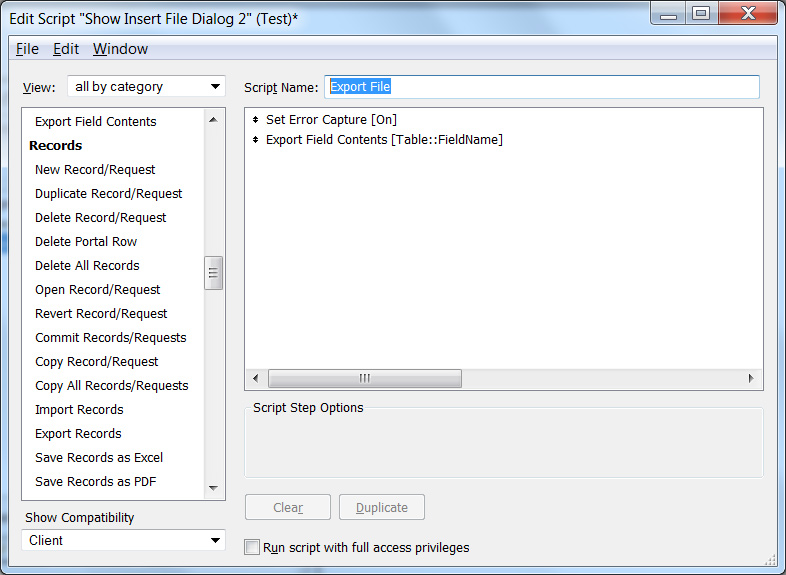 Export’s script contains two steps: Set Error Capture [On] and Export Field Contents [Table::FieldName].
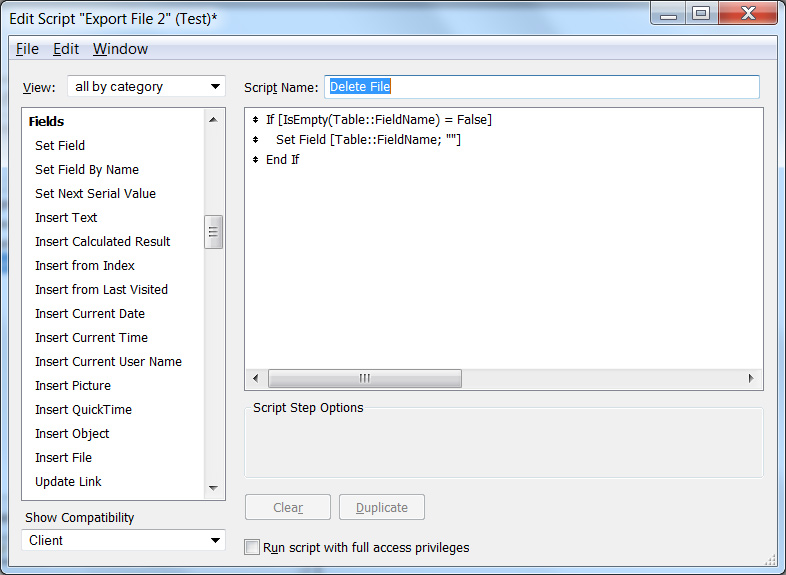 Delete’s script uses an If statement to check if the container field is empty. If the field is not empty, the script calls Set Field [Table::FieldName, “”].
Why the If statement? Without it, clicking the delete button on a brand-new, empty portal row sets the container field to a value which causes the portal row to be inserted into the table, even though it is empty. The If statement prevents this.
 To improve the user interface experience, conditional formatting can be used to make the two buttons appear disabled when the container field is empty.
It’s also interesting to see what you can do on the Filemaker Go side with container fields allowing sounds, ie recording sounds in FMP Go directly on the field.