Data Mashup Explorer
For Data Mashup Explorer, this release adds one new feature: the ability to view the components which make up embedded content items.
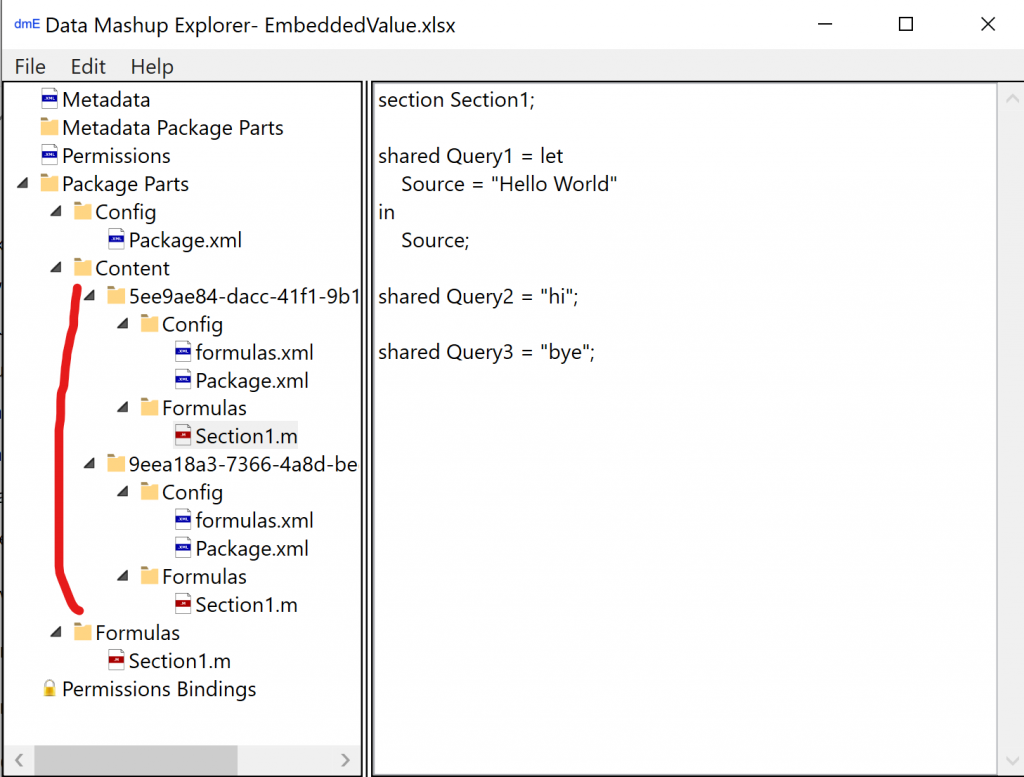

For Data Mashup Explorer, this release adds one new feature: the ability to view the components which make up embedded content items.
You’d like to compare the Power Query mashups contained in two Microsoft Excel and/or Microsoft Power BI files. Opening Query Editor for each and hand-comparing the queries one at a time quickly becomes tediously painful with all but the smallest of query sets. An easy way to find the differences between mashups in the files would be most helpful.
How about something as simple as:
Compare-DataMashup SomeFile.xlsx OtherFile.pbix

You create a Power Query and save it. Its written somewhere inside your Microsoft Excel or Microsoft Power BI file—but where and in what format?
First, though, why would understanding the file format used to store Power Queries be of interest? Maybe you’re just curious and like to know how things work. 🙂 Maybe comparing query text between files or hooking up some kind of M version control is important. Maybe you’re looking for automation options, so you can do something like mass update the M code in a folder full of files quickly. While it’s unnecessary to understand the underlying file format to simply use Power Query, there are times and places where knowing about that format can come in handy.
In this post, we’ll lay a foundation on how to get to those saved mashups. We’ll overview the file format used to persist mashups, describing the various pieces of supporting information saved along with them, and point you to where you can learn about the fine, byte-level details of the format (in case you want to write your own parsing logic that reads and even modifies saved M queries!).
Continue readingIf you’ve worked in Power Query’s advanced editor for any length of time, you’ve probably figured out that the step names displayed in the UI are simply the variable names from the query’s main let expression.
This holds true, except in one case: The navigation step.
If a query’s let expression defines a variable for a data source and then follows this with a variable which uses the previous variable to navigate to a dataset it exposes, the second variable’s name won’t show up in the step list. Instead, the step name for it will default to “Navigation”—and that name can’t be changed in the UI.
Released today: Import and export Power Query from Microsoft Excel and Microsoft Power BI files using PowerShell Core!
Maybe you’d like to extract the Power Query mashups embedded in a folder full of Excel or Power BI files without opening each file one by one. Perhaps you have an M function or query you’d like to mass import into a collection of files. Then there’s version control—you’d like a mechanism to manipulate the mashups in files so that you can wire up a version control setup.
If any of these possibilities perk your interest, Data Mashup Cmdlets may be a useful tool in your Power Query toolkit.
Continue reading
Data Mashup Explorer allows you to explore the Power Query mashups and supporting details contained in a Microsoft Excel or Microsoft Power BI file. Primarily, this tool is useful for learning about the little known but non-secret file format used by these Microsoft applications to save mashups.
Download & Prerequisites: (see tool’s page)
Continue readingA notification pops up on your system: you have a new, red exclamation point, high-priority email. Before you can even read it, your phone rings. It’s your boss. “I just emailed you. We just discovered that column X in our database contains restricted PII that we can’t be storing. The DBAs are deleting the column as we speak. Please be sure it is gone from reports and your system immediately!” You open Microsoft Power BI Desktop, hit refresh, and the column disappears from the dataset because has been removed from the server; then you save the file. But is column really gone, or could there be remnants of its data left on your system?
A prospective client asks you to look at a PBIX file. When you’re done, to minimize liability you don’t want someone else’s data or credentials left sitting on your system, so you delete the file. Are its contents and associated credentials really all gone?
A coworker needs advice on a report, handing it to you on a thumb drive, with the file marked read-only. You open the PBIX file directly from the external drive, give your thoughts then close the file without saving it. Since the drive was external and the file read only, the file was contained exclusively on the flash drive—or was it?
Whether for security purposes, regulatory compliance’s sake, good business practices or liability management, having a sense for whether and, if so, how widely, Power BI spreads report data on your system is a good thing.
Continue reading
In query editor, ever notice that the column data type menu includes four options for numbers: Decimal Number, Currency, Whole Number and Percentage? In this series, we’ve only talked about one numeric type: type number. Are there types we’ve missed?
Behind the scenes, menu item Decimal Number maps to type number, Currency to Currency.Type, Whole Number to Int64.Type and Percentage to Percentage.Type. If you look at the names defined in your Power Query environment, you’ll likely see a host of other “Type” names, including Int8.Type, Int16.Type, Int32.Type, Single.Type and Double.Type. What are all these “Type” names—even more types we have yet to cover?!
Nope! Introducing type facets.
Continue readingPower Query’s type system helps us understand the values we works with, allows us to describe the kinds of data expected by functions we write, offers a means to share documentation (which IntelliSense can display) and provides a mechanism to inform consumers about the structure of the data we’re handing them (which the host environment can use—for example, guiding Power BI to correctly set column types).
To sum up M’s approach to types at a high level:
Every value has a type. A type is itself a value. Types are used to classify values.
A simple statement, but with a lot packed into it and behind it—so much, in fact, that we’ll explore Power Query’s type system in over several posts. Today, we’ll start with the basics, centered around what are known as nullable primitive types. Later, as we get deeper in, hold on to your hat—you might find a major puzzling surprise, where the type system doesn’t work the way you’d expect.
Let’s start delving into the type system by examining the summary statement we read a moment ago.
Continue readingYour Power Query is skipping merrily along its mashup way. Then, bam! Something bad happens! Uh oh! What do you do when an error raises its ugly head? Or, for that matter, what if code you write detects an anomaly and you want to announce this fact in an informative manner?
Thankfully, M has error handling capabilities, allowing you to both raise and handle runtime errors. We’ll learn how to do both.
Important: If you’re familiar with the idea of an exception from other programming languages, Power Query’s error handling is different in at least one significant respect from what you may be familiar with.
Let’s get going!
Continue reading